01
Create the account
A workspace existsChoose the Cloud workspace and finish the basic account setup.
See how SignalCost shows who is using AI, what work it supports, whether it should be allowed, where it should run, what it costs, and how Cloud or Beacon enforces the decision.
The tour follows your setup from workspace creation to capture enrollment, provider coverage, Beacon registration, attribution, business policies, live traffic, prompt security, reports, subscriptions, and support.
Allow, warn, approve, throttle, or block before your company is charged for more usage.
Choose the Cloud workspace and finish the basic account setup.
Install the browser capture app and enter the key from SignalCost.
Ask your AI tools real work questions. SignalCost listens for activity in the background.
See the AI tool, rough purpose, owner, and estimated cost in one place.
Decide what should be allowed, reviewed, capped, or blocked.
Send finance, leadership, or operations a report that explains usage in plain business terms.
These screens show the buyer journey after signup: start capture, review provider coverage, register Beacon, create policies, review attribution, inspect traffic, download reports, and handle subscriptions.
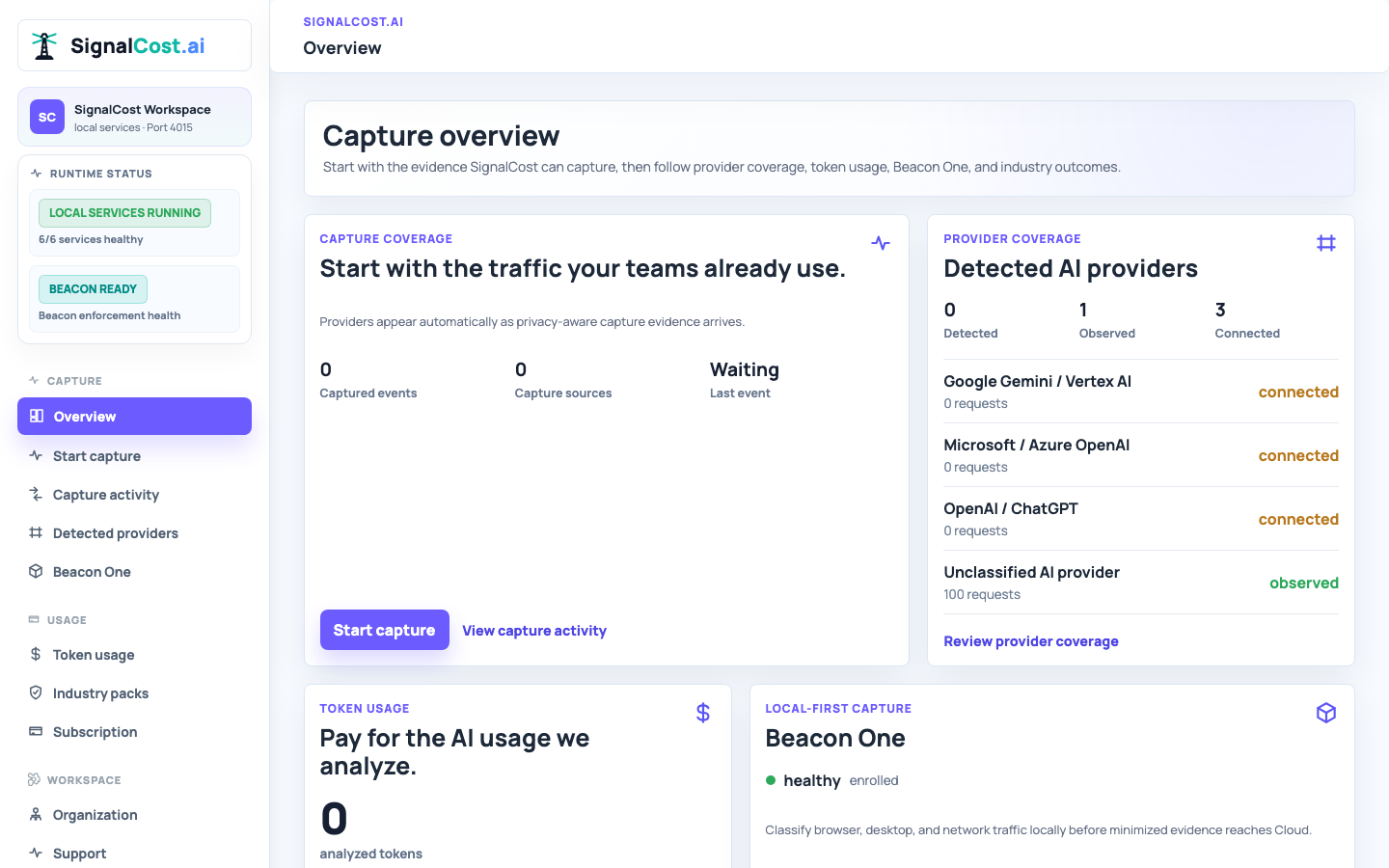
A plain starting view that recognizes when your Beacon and first employee credential are ready, then waits for real traffic.
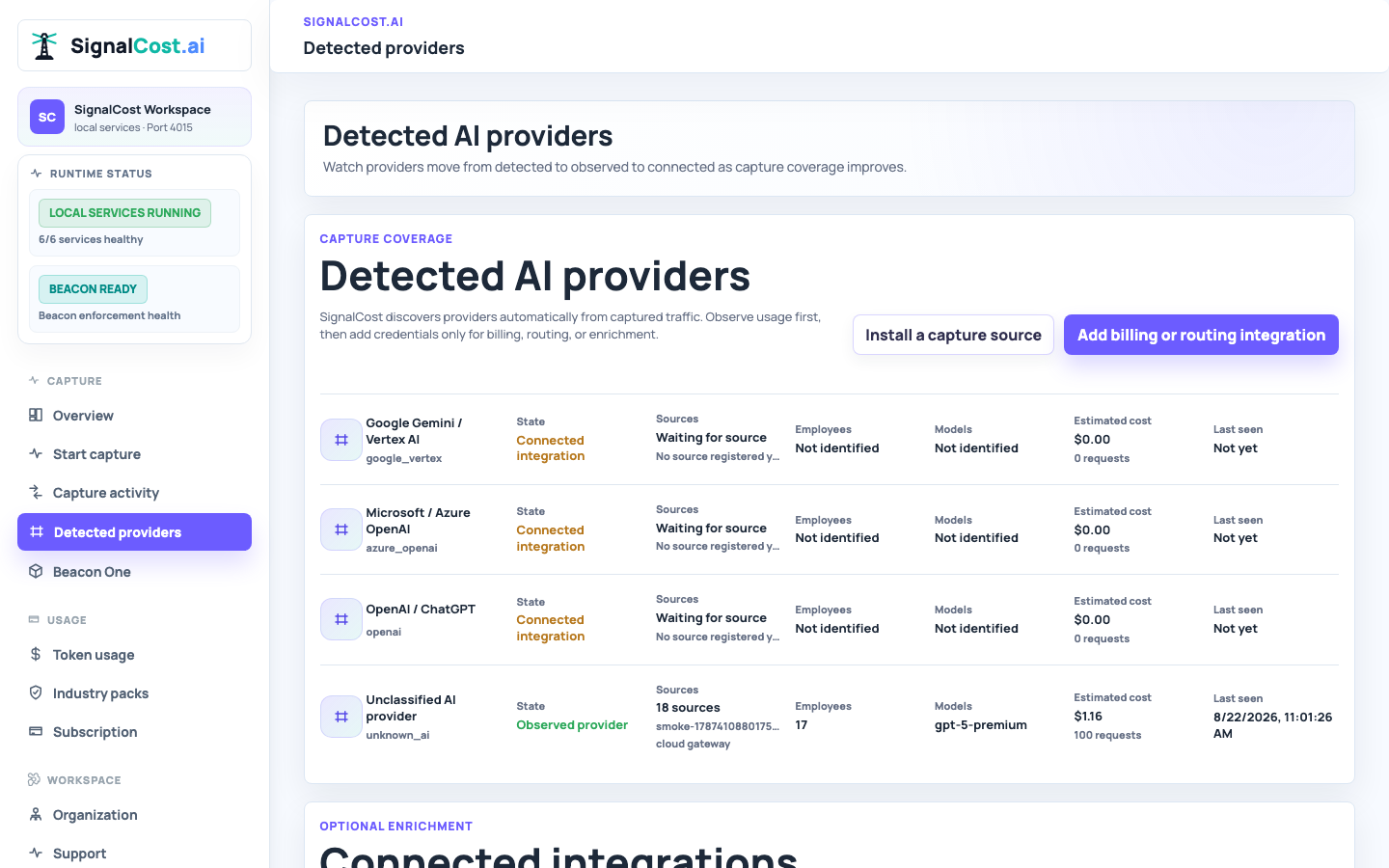
Install a capture source to discover AI providers automatically, then add optional billing or routing integrations when needed.
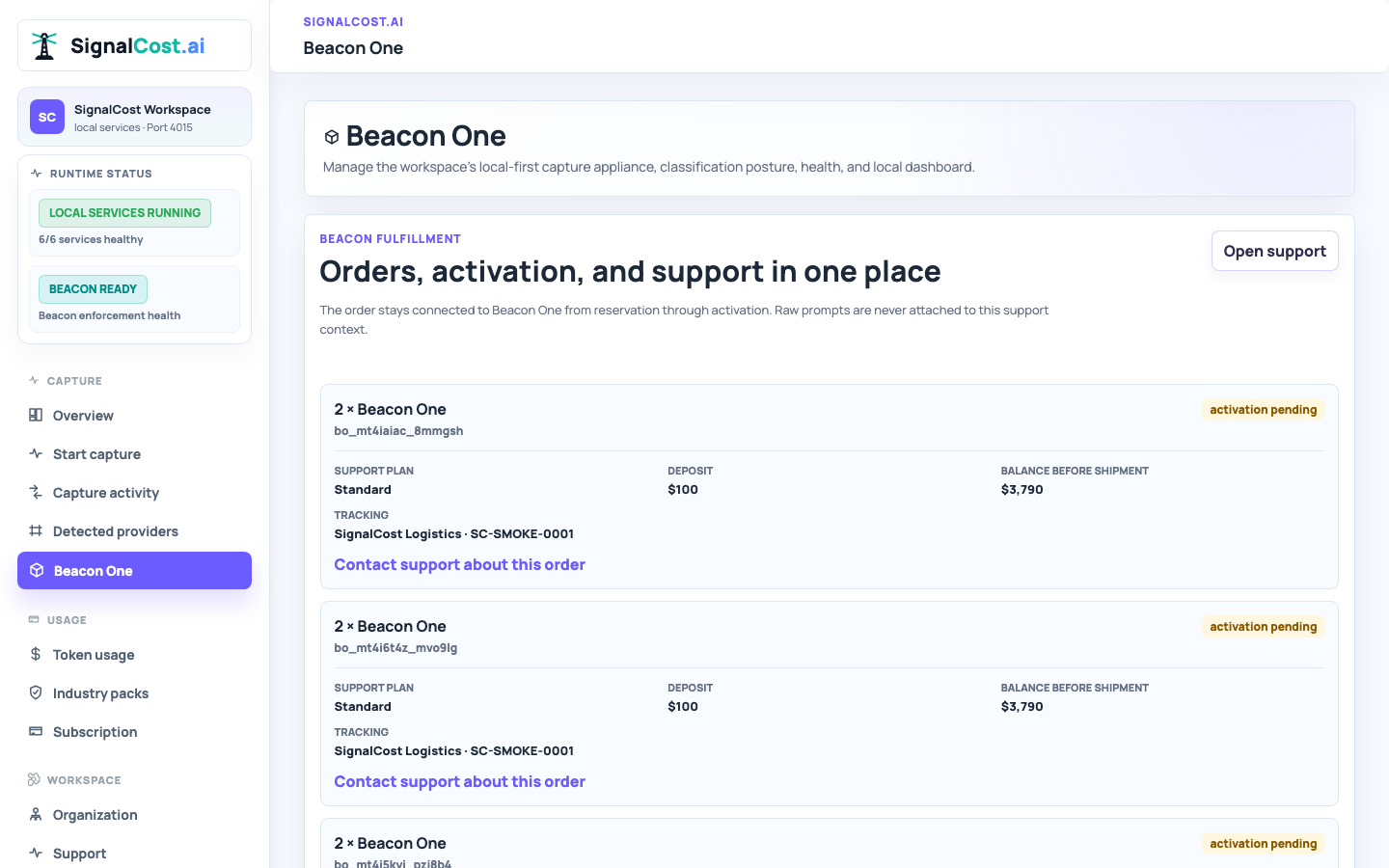
See active office Beacons, health, traffic status, and a direct link to each local dashboard.
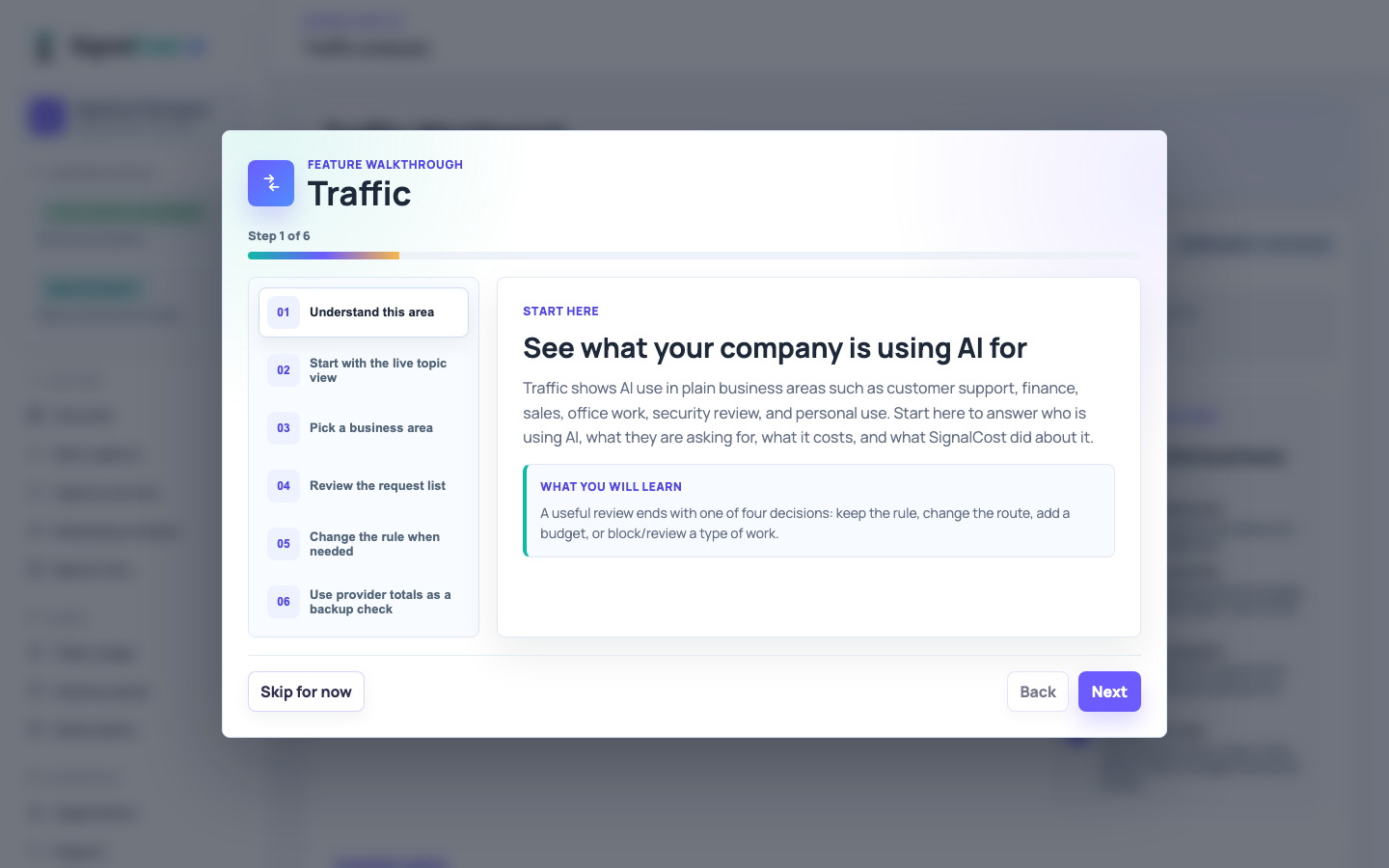
Search live traffic, open a row, and see the prompt, topic, policy, route, receipt, and decision explanation.
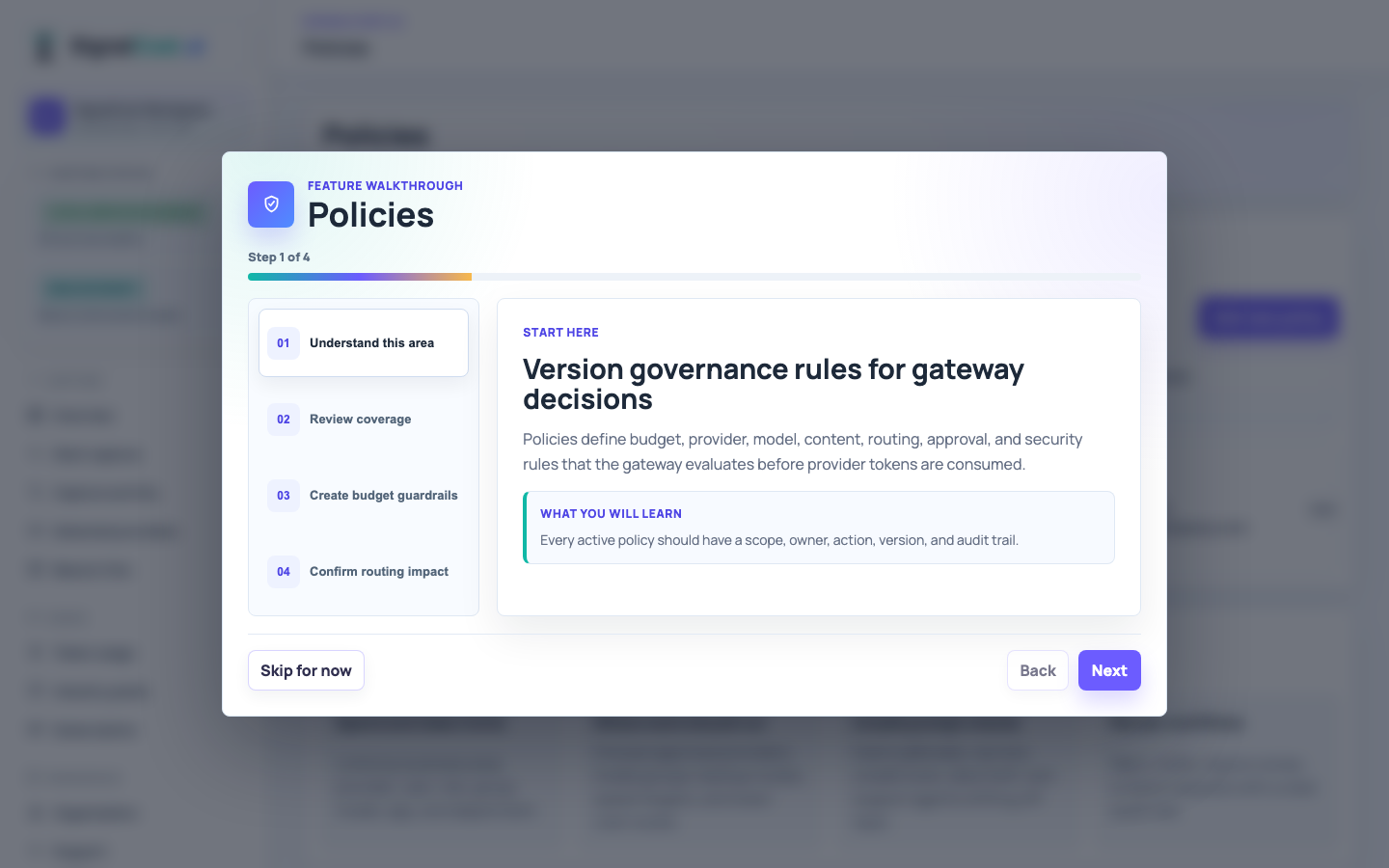
Create, edit, and apply plain-English policies from templates for business areas, personal use, routing, quotas, and review.
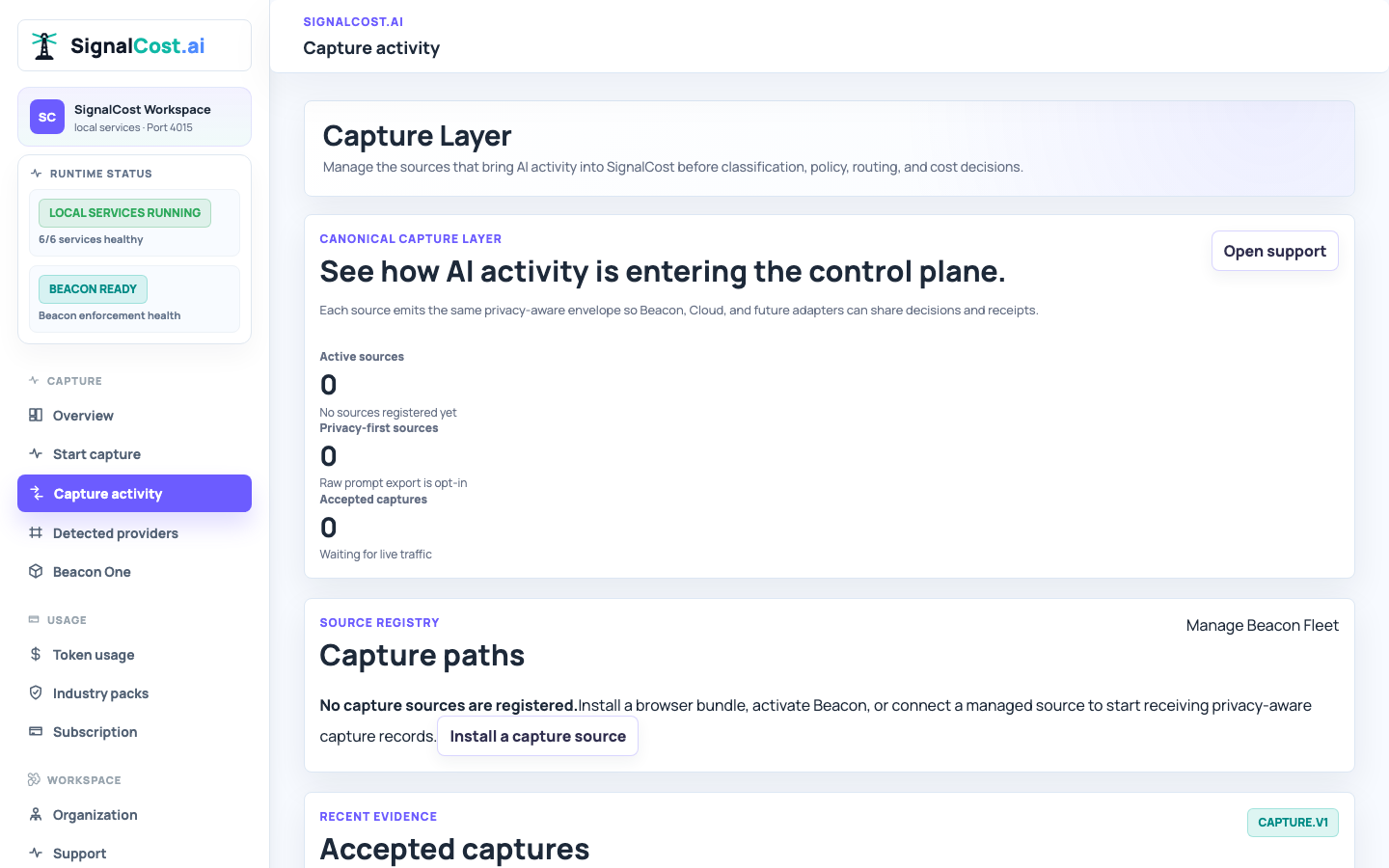
Discover provider usage automatically, then add optional source, employee, device, or workload attribution when the workspace needs it.
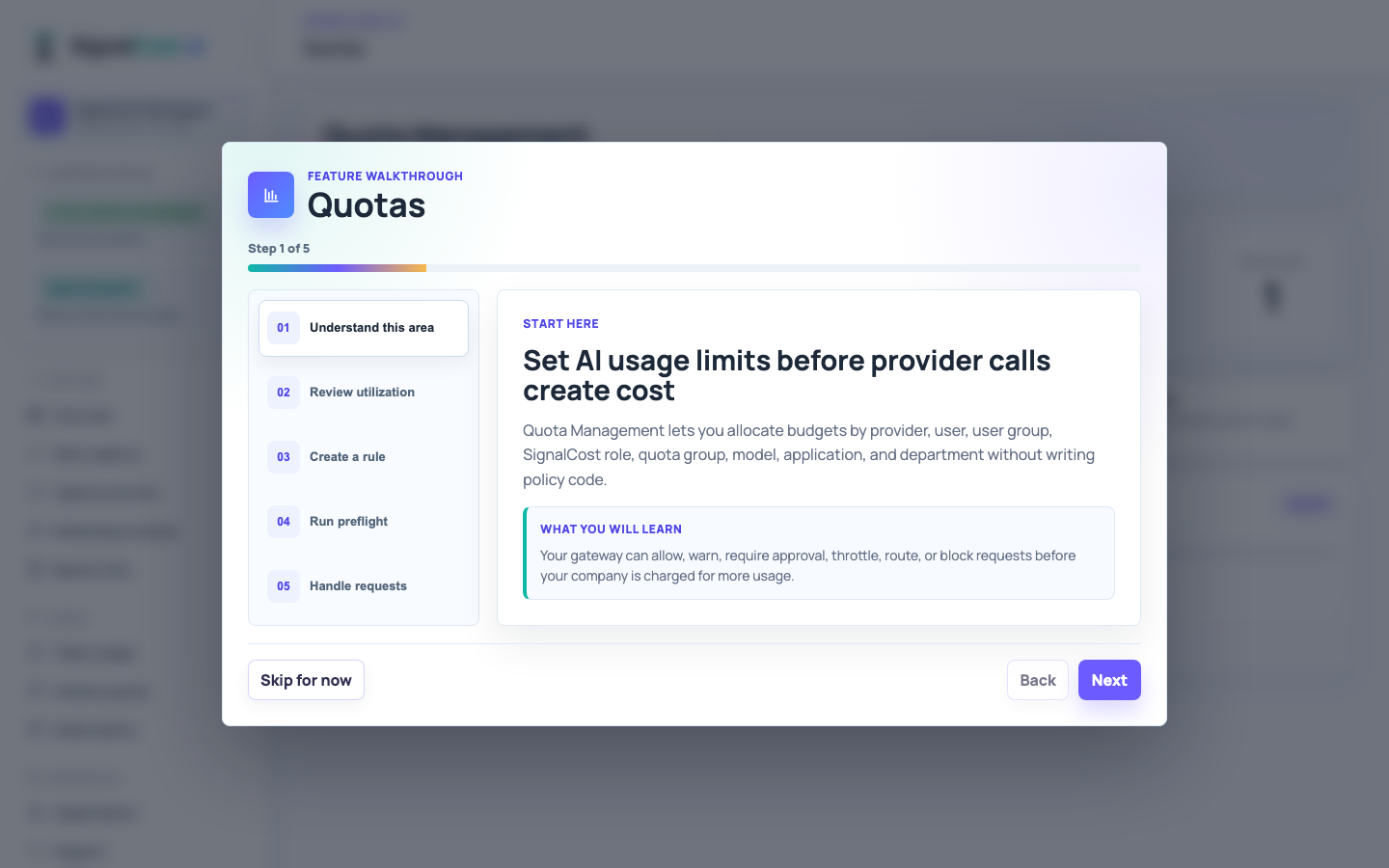
Set practical spend and token limits by provider, user, role, team, model, department, and agent.
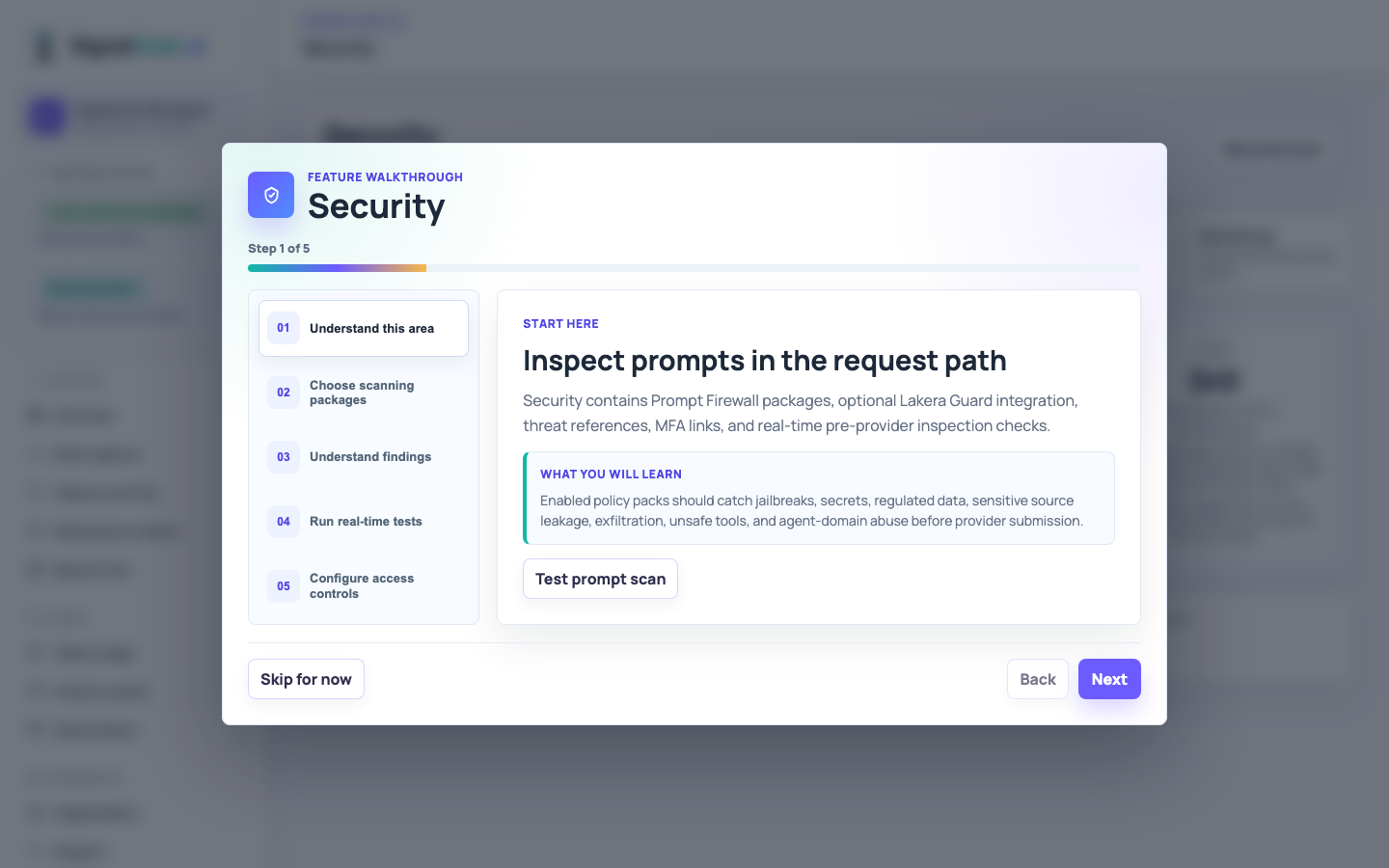
Inline security decisions for jailbreaks, prompt injection, secrets, unsafe tools, and domain abuse.
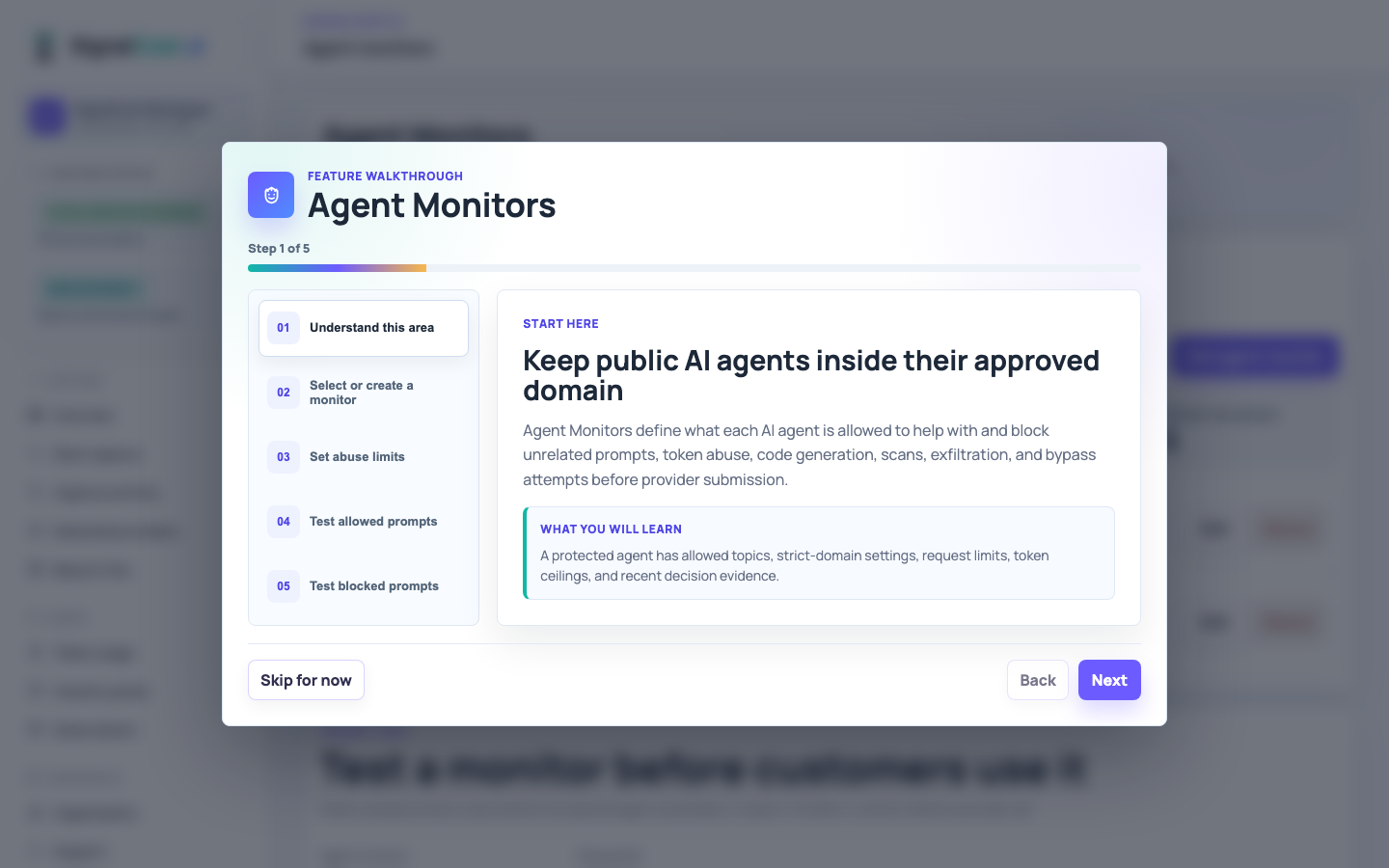
Domain-aware controls, tool policies, MCP server allowlists, and per-run limits that prevent public agents from off-domain or unsafe actions.
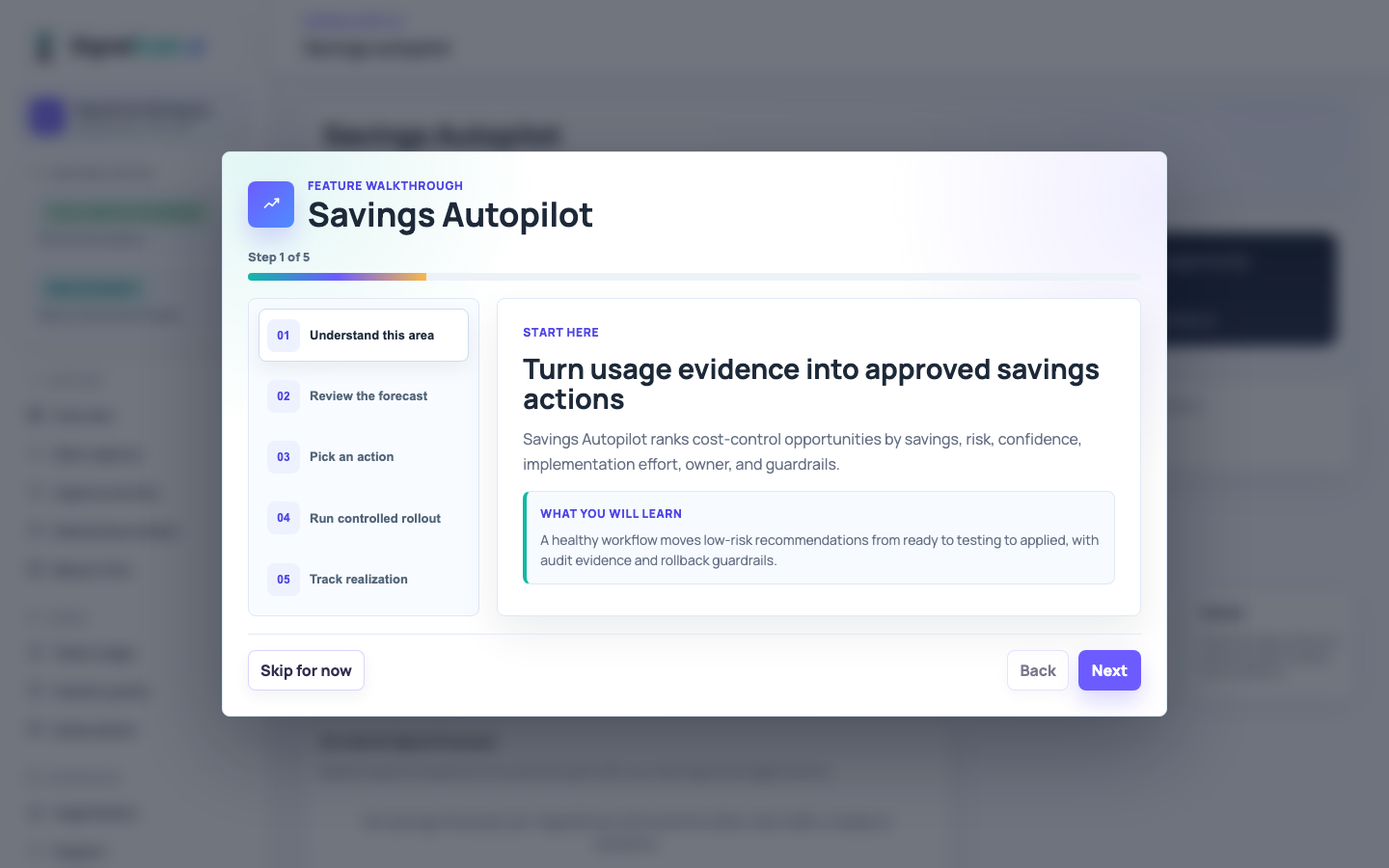
ROI recommendations, approval workflows, provider alternatives, and forecasted impact.
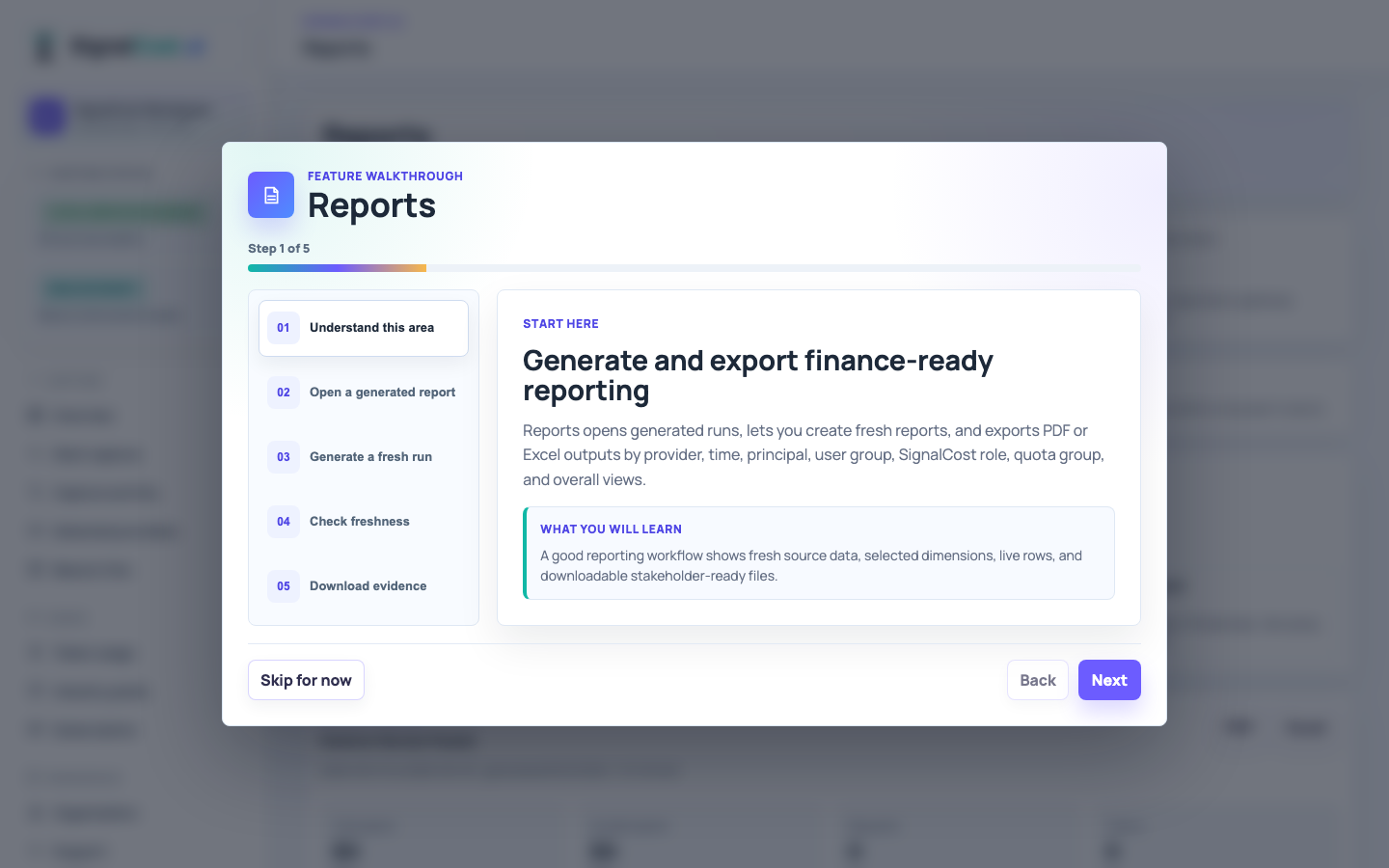
Open live reports and download PDF or Excel summaries owners can use for finance, security, and operations review.
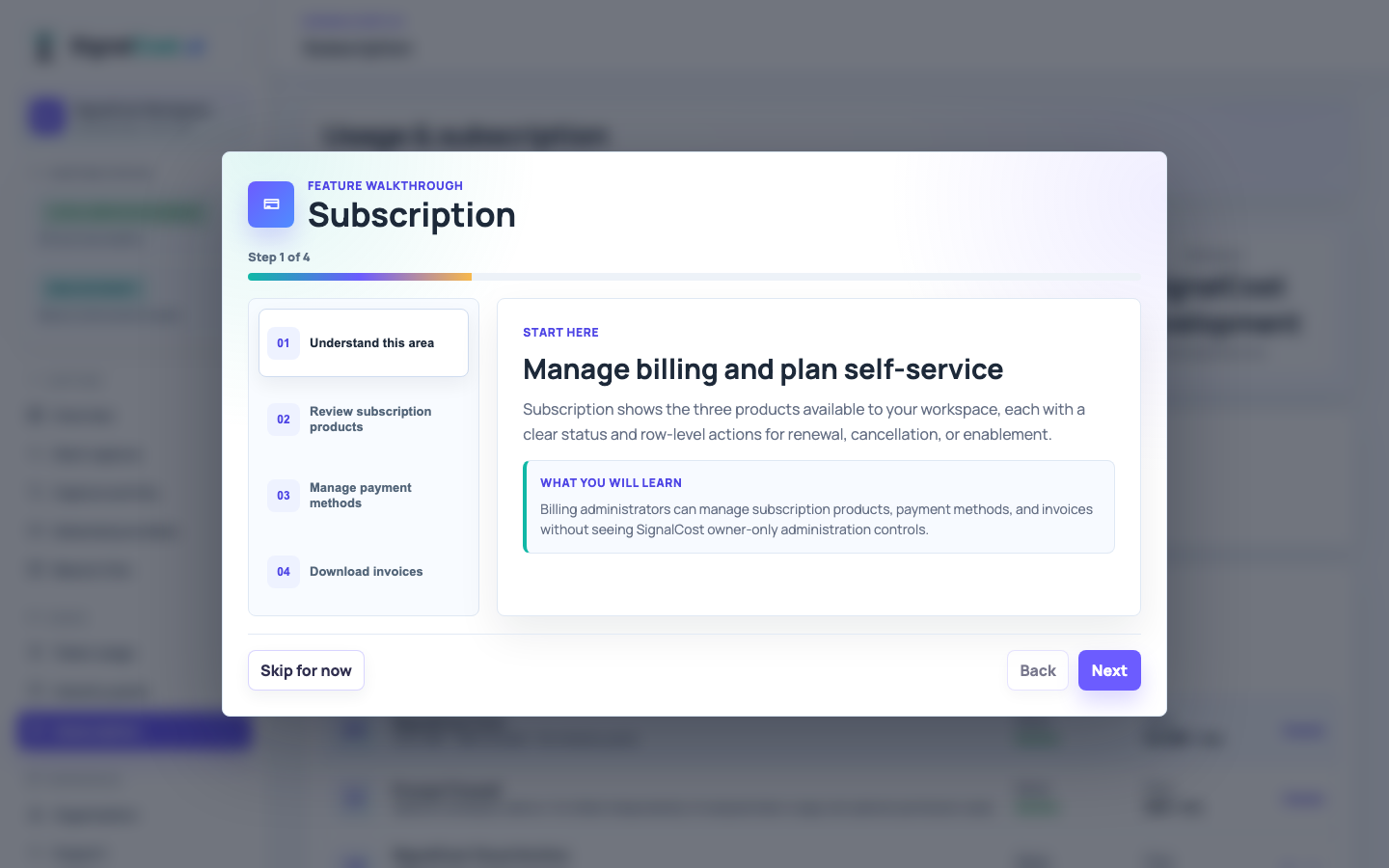
Review Cloud, Beacon, and Cloud Archive subscription status, then manage payment methods from one focused page.
SSO configuration, production passkey verification, recovery tokens, and access posture.
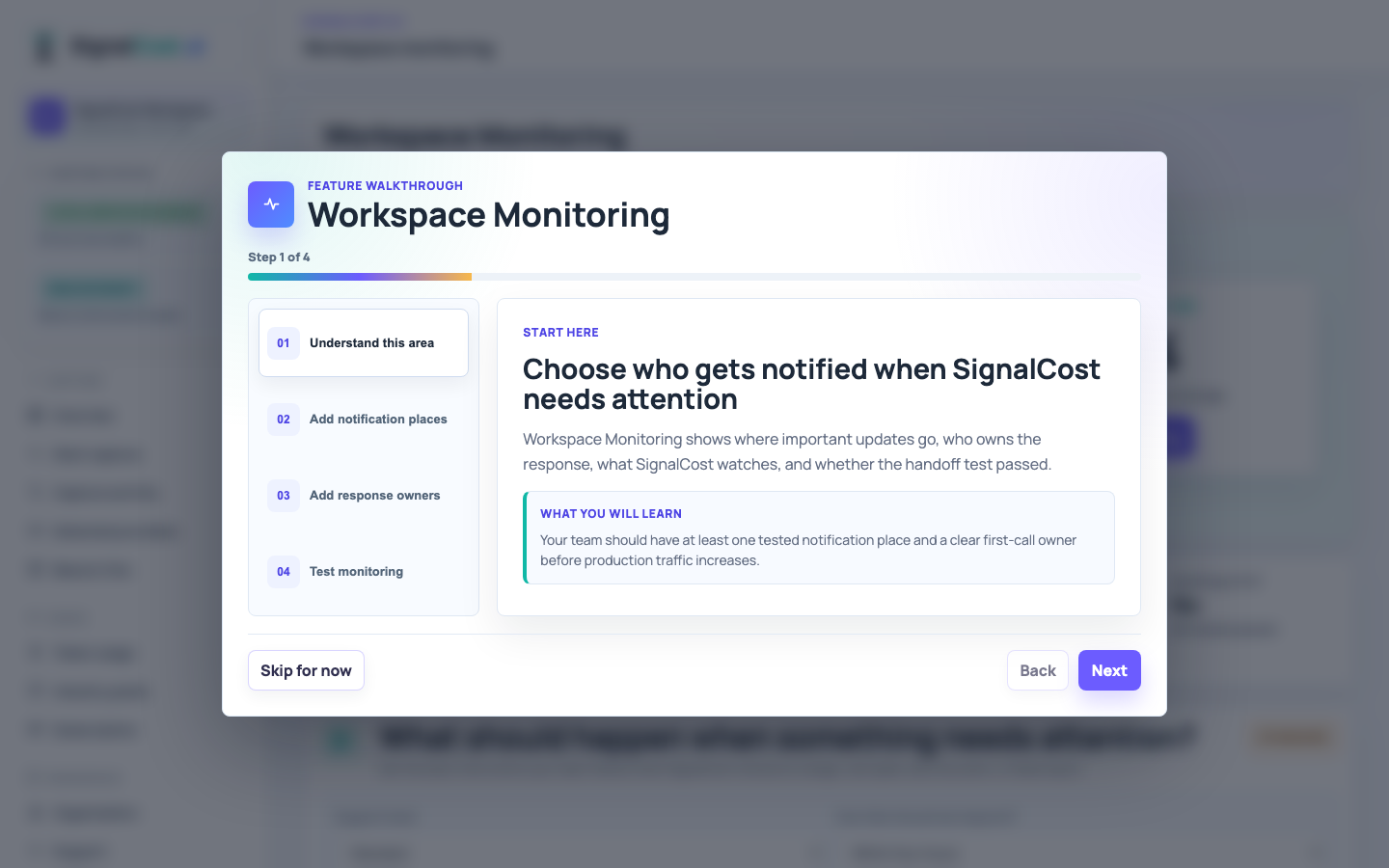
Customer-managed monitoring feeds, escalation contacts, runbooks, and live handoff verification.
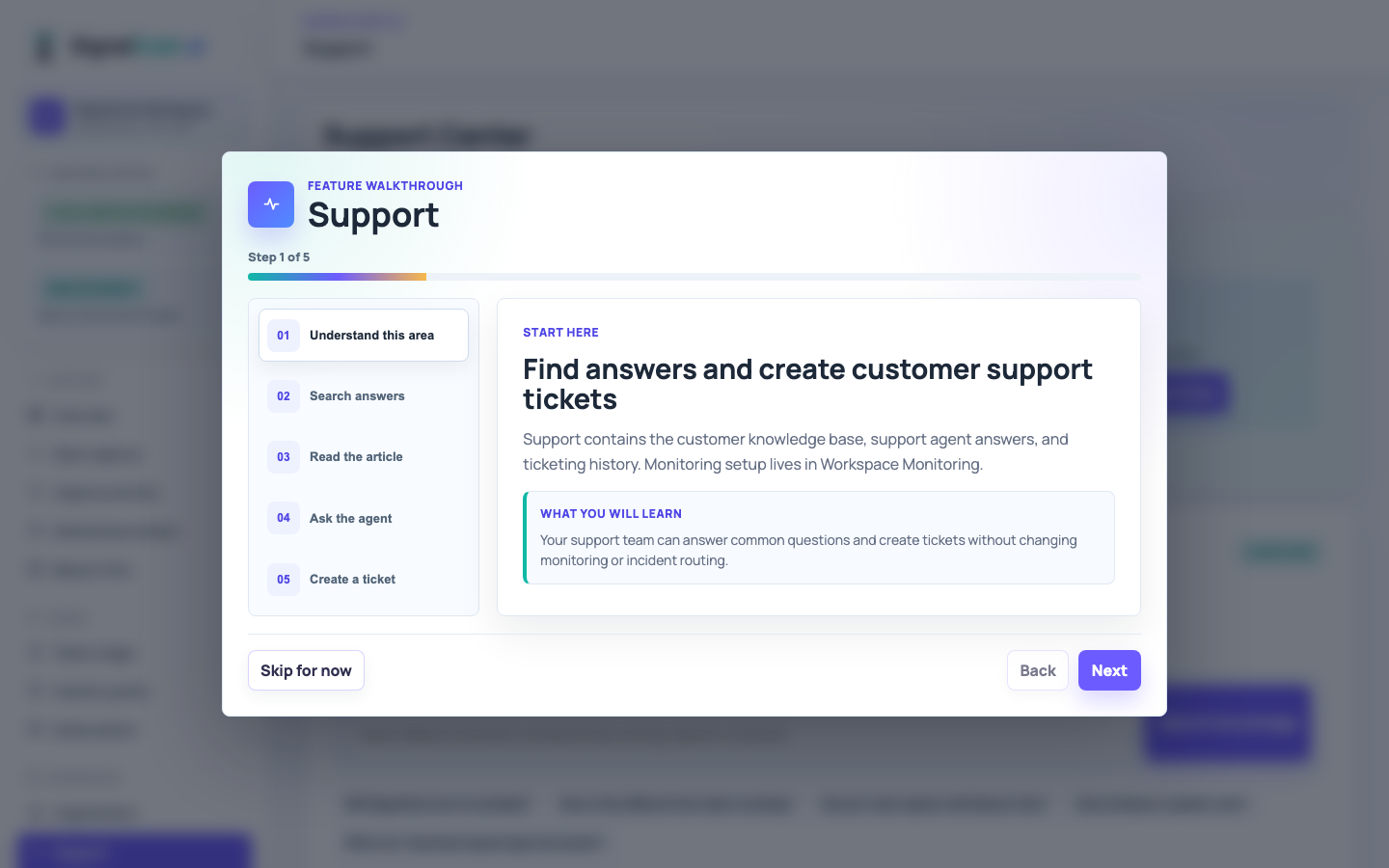
Searchable knowledge articles, support agent answers, and customer ticket history.
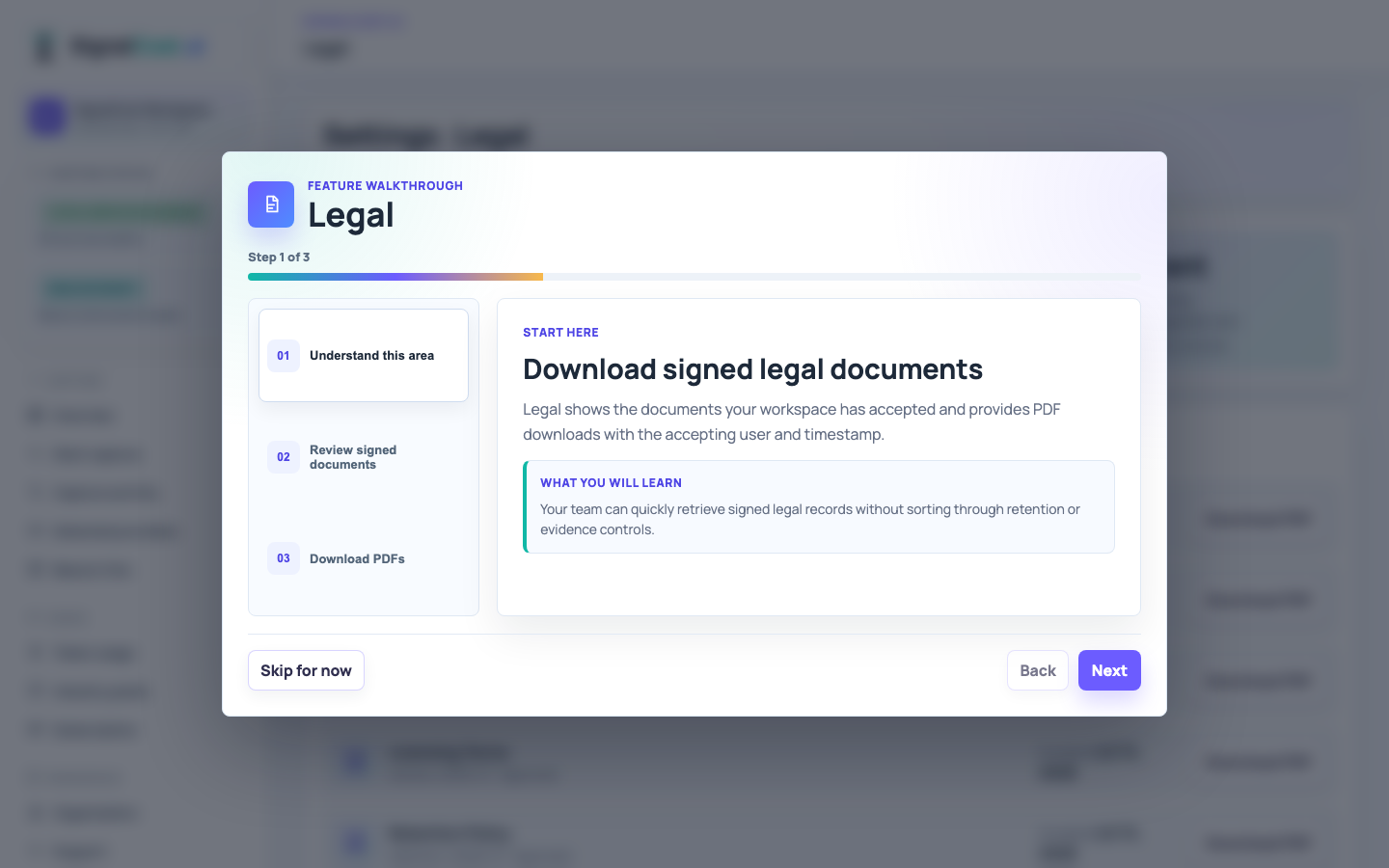
Signed document downloads with accepted PDF evidence.
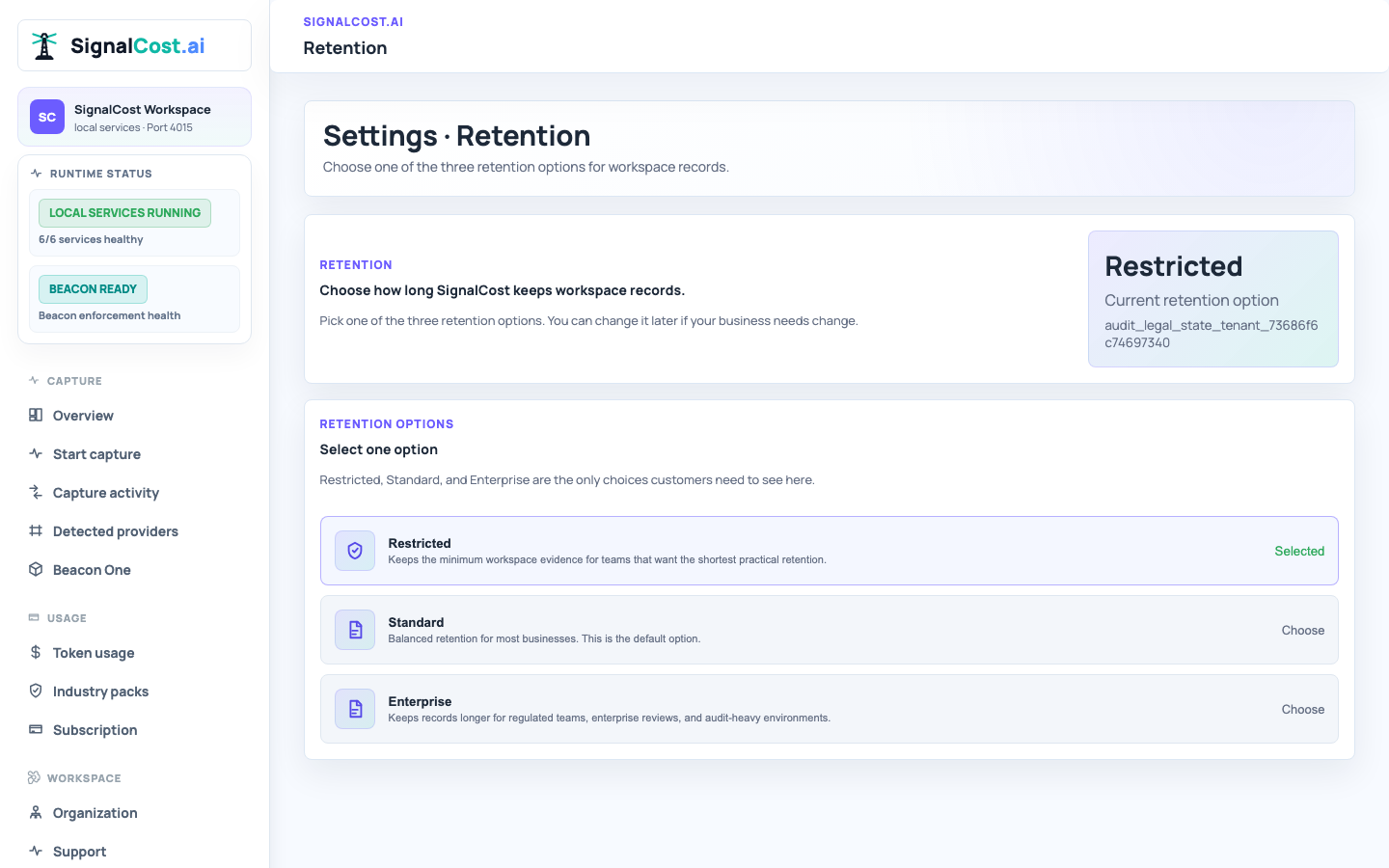
Restricted, Standard, and Enterprise choices on one focused settings page.
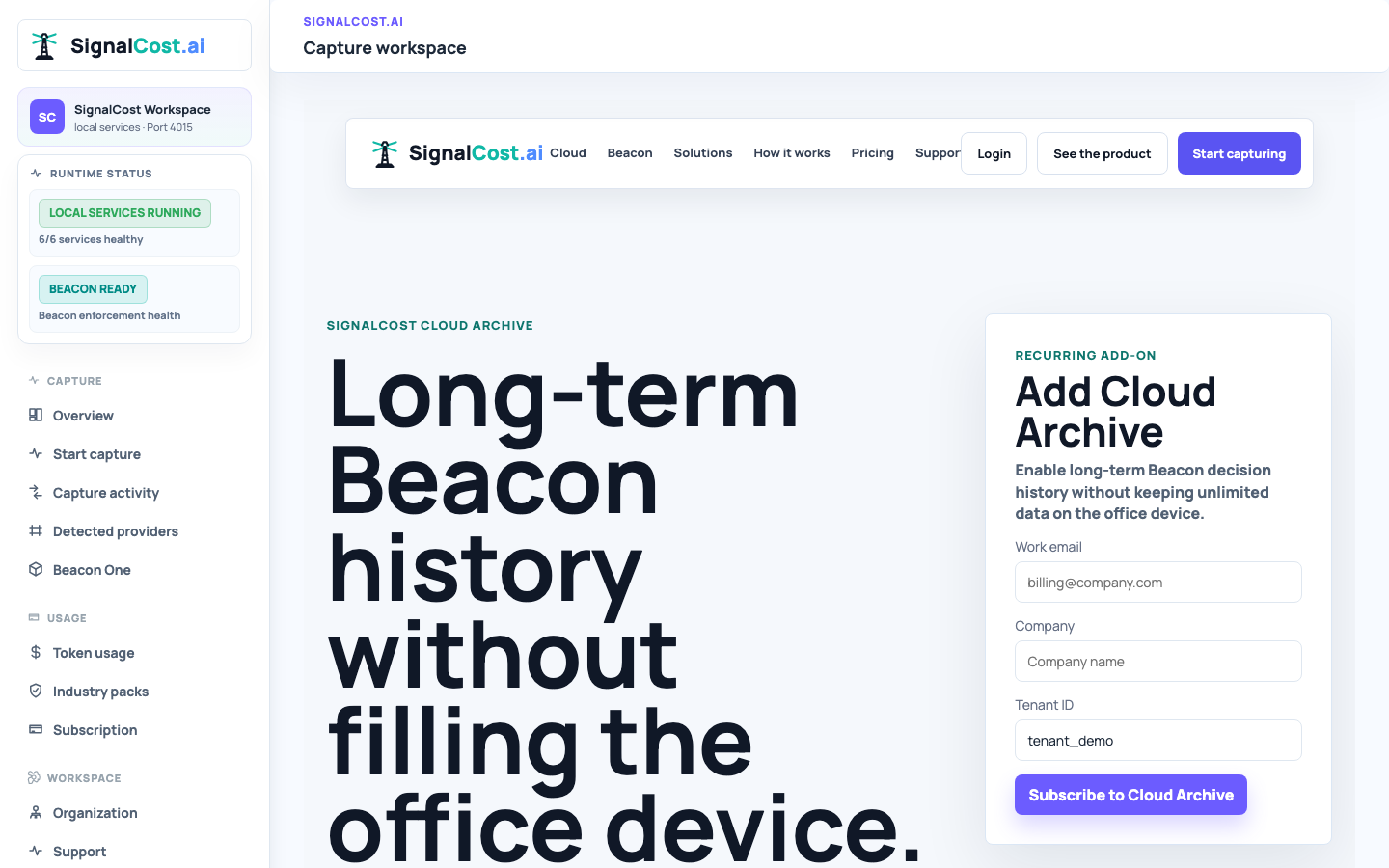
Enable long-term Beacon history when your company needs more than the local retention window.
Start as an individual with personal protection or as a team with token-bundle pricing. Beacon One remains the local-control device for people and locations that need AI activity reviewed near the source.